Navigating Windows efficiently can significantly enhance your productivity and streamline your daily computer tasks. Mastering basic keyboard shortcuts is one of the easiest ways to speed up your workflow. This guide provides an overview of essential Windows shortcuts, highlighting their uses and benefits. By incorporating these shortcuts into your routine, you’ll be able to navigate your Windows environment more swiftly and effectively.
Click Here to See Free Windows 11 Download and Its Features
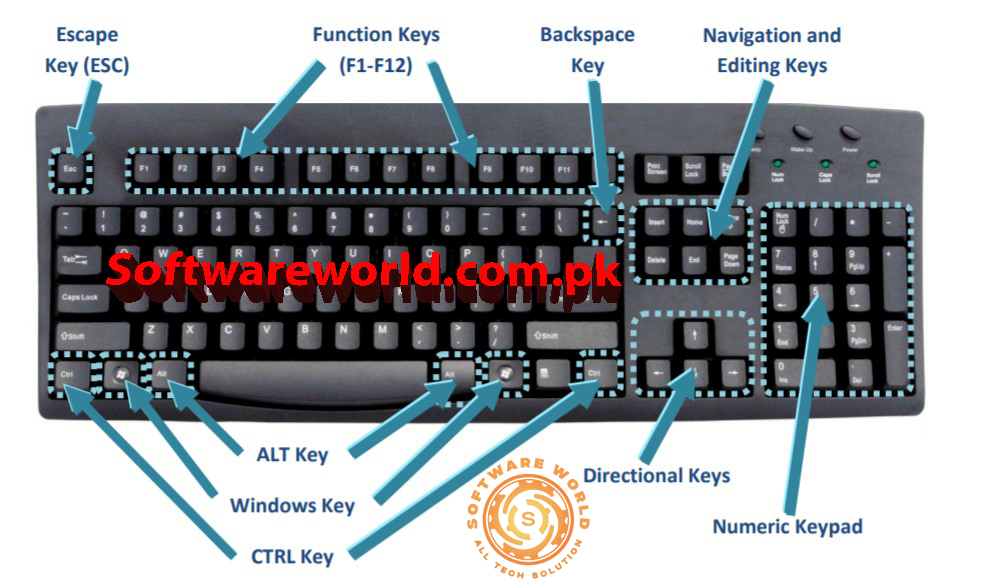
Basic Windows Keyboard Shortcuts
Windows operating systems are equipped with a range of keyboard shortcuts designed to make your computing experience more efficient. Here’s a list of essential shortcuts you should be familiar with:
- Ctrl + C (Copy): This Keyboard Shortcut Key copies the selected item to the clipboard, allowing you to paste it elsewhere using Ctrl + V. It’s a fundamental command for managing text, files, and images.
- Ctrl + V (Paste): After copying or cutting an item, use this shortcut to paste it into the desired location. It’s crucial for moving or duplicating content efficiently.
- Ctrl + X (Cut): This Keyboard shortcut key command removes the selected item and places it on the clipboard, so you can paste it elsewhere. It’s useful for reorganizing files or text.
- Ctrl + Z (Undo): If you make a mistake, pressing Ctrl + Z will undo the last action. It’s a lifesaver for correcting errors quickly.
- Ctrl + A (Select All): This Keyboard shortcut selects all items in the current window or document. It’s handy for bulk operations such as copying or formatting.
- Alt + Tab (Switch Between Open Applications): Use this combination to cycle through open programs and windows. It allows for quick navigation between tasks without using the mouse.
- Windows Key + D (Show Desktop): Pressing this Keyboard shortcut minimizes all open windows and shows the desktop. Press it again to restore the windows to their previous state.
- Windows Key + E (Open File Explorer): This Keyboard Shortcut opens the File Explorer, providing quick access to your files and folders.
- Windows Key + L (Lock Computer): Use this Keyboard Shortcut to lock your computer quickly, securing your session and preventing unauthorized access when you step away.
- Windows Key + R (Open Run Dialog): This Keyboard shortcut opens the Run dialog box, allowing you to quickly launch applications or execute commands by typing them in.
- Windows Key + S (Open Search): Press this to open the search bar where you can quickly find files, settings, or applications.
- Ctrl + Shift + Esc (Open Task Manager): This command opens the Task Manager directly, providing a detailed view of running processes and performance metrics.
- Alt + F4 (Close Current Window): Use this shortcut to close the active window or application. If no windows are open, it will prompt you to shut down or restart your computer.
- F2 (Rename Selected Item): Press F2 to quickly rename a selected file or folder without using the mouse.
- Windows Key + I (Open Settings): This Keyboard Shortcut opens the Settings app, where you can adjust system preferences and configurations.
- Windows Key + P (Project Screen): Use this Keyboard Shortcut to switch between different display modes when using an external monitor or projector. It’s useful for presentations or multi-monitor setups.
- Windows Key + M (Minimize All Windows): This Keyboard Shortcut minimizes all open windows, similar to Windows Key + D, but without showing the desktop.
- Ctrl + N (New Window): Opens a new instance of the current application. For example, in a browser, it opens a new tab.
- Ctrl + W (Close Current Tab/Window): This Keyboard Shortcut command closes the current tab in browsers or the active window in other applications.
- Alt + Enter (Open Properties): Select a file or folder and press Alt + Enter to open its properties window, where you can view details and modify settings.
- Windows Key + C (Open Cortana): Opens the Cortana search assistant on Windows 10. If you’re using Windows 11, it will open the Widgets panel instead.
- Windows Key + U (Open Ease of Access Settings): Opens the Ease of Access settings, where you can adjust accessibility options for better usability.
- Windows Key + X (Open Power User Menu): This opens a menu with quick access to system tools like Device Manager, Control Panel, and Command Prompt.
- Ctrl + Shift + N (Create New Folder): In File Explorer, this shortcut creates a new folder in the current directory.
- Ctrl + F (Open Find Dialog): Opens the Find dialog in many applications, including web browsers and File Explorer, allowing you to search for text or files.
- Ctrl + H (Open History): In web browsers, this opens the history tab where you can view and manage your browsing history.
- Ctrl + J (Open Downloads): Opens the Downloads folder in web browsers to view recently downloaded files.
- Windows Key + 1-9 (Open Specific Taskbar App): Pressing Windows Key + 1-9 opens the corresponding application pinned to your taskbar. For example, Windows Key + 1 opens the first pinned app.
- Alt + Tab + Shift (Switch Back to Previous App): Hold Alt + Tab, and press Shift to cycle backward through open applications.
- Ctrl + Alt + Del (Open Security Options): Opens a screen with options to lock your computer, switch users, log out, or open Task Manager.
- Windows Key + R + Shift (Open Run Dialog with Elevated Privileges): Opens the Run dialog as an administrator, allowing you to execute commands with elevated privileges.
- Ctrl + Alt + Tab (Open Task Switcher): Displays the Task Switcher screen, allowing you to select open windows with arrow keys and Enter.
- Ctrl + Shift + T (Reopen Closed Tab): In web browsers, this shortcut reopens the last closed tab, helping you recover accidentally closed pages.
- Windows Key + G (Open Xbox Game Bar): Opens the Xbox Game Bar, which provides gaming overlays and recording tools.
- Windows Key + K (Open Connect Panel): Opens the Connect panel, where you can manage Bluetooth and wireless display connections.
- Alt + Space (Open Window Menu): Opens the system menu of the current window, allowing you to restore, minimize, maximize, or close the window.
- Ctrl + Alt + Down Arrow (Flip Screen Orientation Down): Rotates the screen orientation to landscape mode. Use Ctrl + Alt + Up Arrow to rotate back to the standard view.
- Ctrl + Alt + Left Arrow (Rotate Screen Left): Rotates the screen 90 degrees to the left. Use Ctrl + Alt + Right Arrow to rotate to the right.
- Windows Key + Left Arrow (Snap Window Left): Snaps the active window to the left half of the screen. Use Windows Key + Right Arrow to snap it to the right.
- Windows Key + Up Arrow (Maximize Window): Maximizes the active window. Use Windows Key + Down Arrow to restore or minimize the window.
- Ctrl + P (Print): Opens the Print dialog for the current document or image, allowing you to select printer settings and print.
- Windows Key + M (Minimize All Windows): Minimizes all open windows, giving you quick access to the desktop. Press again to restore the windows.
- Windows Key + E (Open File Explorer): Opens File Explorer, providing quick access to your files and folders.
- Alt + F8 (Show Password): In password entry fields, this shortcut toggles the visibility of the password characters.
- Ctrl + Shift + Esc (Open Task Manager): Opens Task Manager directly, providing detailed information about system performance and running processes.
- Ctrl + Alt + Delete (Open Security Options): Opens the security screen for locking your computer, switching users, or accessing Task Manager.
- Windows Key + H (Open Dictation Tool): Opens the dictation tool for speech-to-text input.
- Ctrl + Shift + V (Paste Without Formatting): Pastes copied content without any formatting, which is useful for maintaining consistency in documents.
- Windows Key + Plus Sign (+) (Open Magnifier): Opens the Magnifier tool, allowing you to zoom in on parts of your screen. Use Windows Key + Minus Sign (-) to zoom out.
- Ctrl + D (Delete Selected Items): Deletes the selected items and moves them to the Recycle Bin.
Why Keyboard Shortcuts Matter
Incorporating these basic Windows shortcuts into your daily routine can save you time and make your computing tasks more efficient. Instead of navigating through menus and dialogs, using keyboard shortcuts allows for faster execution of commands. Whether you’re managing files, switching between applications, or performing repetitive tasks, these shortcuts provide a quick and effective way to enhance productivity.
Tips for Mastering Shortcuts
- Practice Regularly: Incorporate these shortcuts into your daily tasks to build muscle memory. The more you use them, the more natural they will become.
- Create a Cheat Sheet: If you’re new to shortcuts, consider creating a cheat sheet to keep handy. Over time, you’ll remember them without needing constant reference.
- Customize Shortcuts: Some applications allow you to customize keyboard shortcuts. Tailor them to fit your workflow for even greater efficiency.
- Stay Updated: As Windows updates and new features are introduced, new shortcuts may become available. Keep an eye out for updates to expand your shortcut knowledge.
Conclusion
Mastering basic Windows shortcuts can greatly enhance your efficiency and productivity. By familiarizing yourself with these essential commands, you can streamline your tasks and navigate your Windows environment more effectively. From copying and pasting to switching applications and managing files, these shortcuts are designed to make your computing experience smoother and more efficient. Start incorporating these shortcuts into your workflow today and enjoy a more productive computing experience.
If You Have Any Questions, Please Feel Free to Post Them in the Comment Section Below!
For more updates and content, be sure to follow our Facebook page, subscribe to our YouTube channel, and check out our Instagram for the latest photos and stories.