Creating a bootable USB for Windows 10 and 11 is essential when you want to install or reinstall the operating system on your PC. A bootable USB is not only faster than a DVD but also more versatile. In this guide, we’ll walk you through the steps to make a bootable USB for Windows 10 and 11, ensuring a smooth installation process.
Requirements
Before we dive into the process, make sure you have the following:
- A USB flash drive with at least 8 GB of storage.
- A Windows 10 or 11 ISO file.
- Access to a computer running Windows.
- A tool like the Windows Media Creation Tool or Rufus.
Step 1: Download the Windows ISO File
The first step in creating a bootable USB for Windows 10 and 11 is to download the official ISO file from Microsoft’s website. You can do this by visiting the Microsoft Download Center and selecting the version of Windows you need. For Windows 10, select “Download tool now,” and for Windows 11, select “Download now.”
Click Here to See Free Windows 10 Download and Its Features.
Click Here to See Free Windows 11 Download and Its Features.
Step 2: Choose the Right Tool
To make a bootable USB for Windows 10 and 11, you’ll need a specialized tool. The two most popular options are:
- Windows Media Creation Tool: This is Microsoft’s official tool, perfect for creating a bootable USB for both Windows 10 and 11. It automatically downloads the ISO and sets up the USB drive.
- WinSetupFromUSB: is a powerful and versatile tool for creating bootable USB drives. Unlike many other tools that focus solely on one operating system, WinSetupFromUSB can handle multiple operating systems and utilities on a single USB drive. It’s particularly useful for IT professionals or users who need a multi-boot environment.
- Rufus: If you already have the ISO file, Rufus is an excellent choice. It’s lightweight, fast, and provides more customization options.
- Linux Live USB Creator: This is a tool that allows you to create a bootable USB drive containing a Linux operating system. With this, you can run Linux directly from the USB drive without installing it on your hard drive. It’s an excellent way to test different Linux distributions or use a portable operating system on any computer.
- UNetbootin: Universal Net boot Installer is a popular tool for creating bootable USB drives, primarily used to create Linux Live USBs. It works on Windows, Linux, and macOS, and supports a wide range of Linux distributions.
Step 3: Create the Bootable USB
Using the Windows Media Creation Tool:
- Plug in your USB drive.
- Open the Windows Media Creation Tool.
- Select “Create installation media for another PC.”
- Choose the language, edition, and architecture.
- Select “USB flash drive” and choose your USB drive from the list.
- Click “Next” to begin the process.
Using Rufus:
- Click here to Download rufus.
- Plug in your USB drive.
- Open Rufus.
- In the “Device” section, select your USB drive.
- In the “Boot selection” section, click “Select” and choose the ISO file.
- Choose the partition scheme (usually GPT for modern systems).
- Click “Start” to begin creating the bootable USB.
Step 4: Boot from the USB
Once the bootable USB for Windows 10 and 11 is ready, you’ll need to configure your PC to boot from it:
- Insert the USB drive into the target PC.
- Restart the PC and enter the BIOS/UEFI settings (usually by pressing F2, F12, DEL, or ESC during startup).
- Change the boot order to prioritize the USB drive.
- Save the changes and exit the BIOS/UEFI.
The PC will now boot from the USB, allowing you to start the Windows installation process.
Free Download WinSetupFromUSB
https://devuploads.com/tvxyqv7dkl0k
Step 1: Copy the URL.
Step 2: Open a new tab and paste the link.
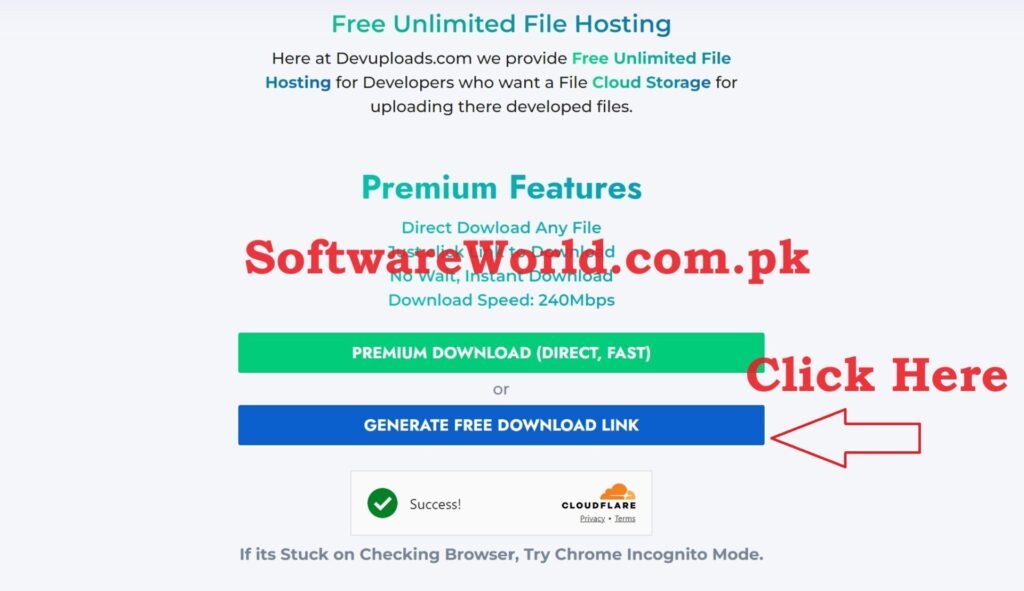
Step 3: Scroll down and click on “GENERATE DOWNLOAD LINK” button.
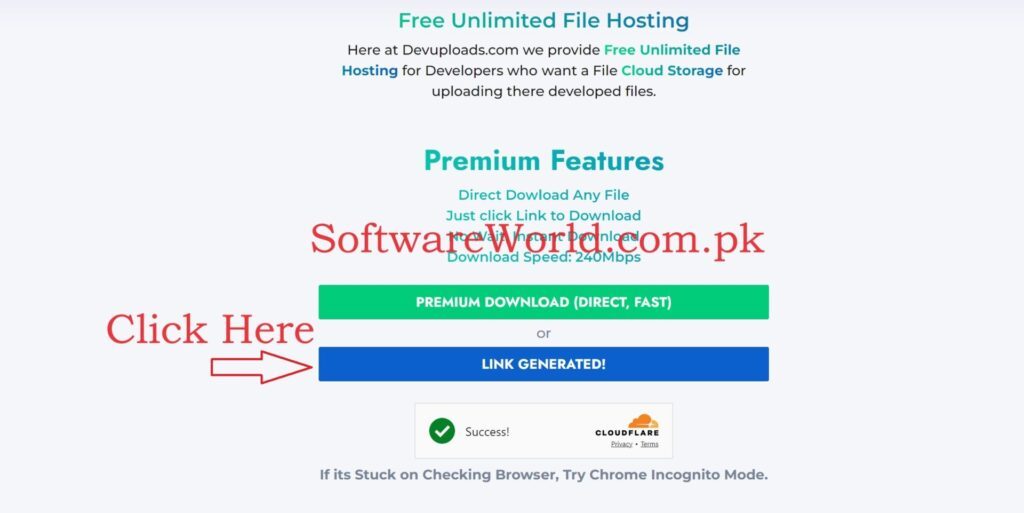
Step 4: Wait for 3 to 5 seconds and then click on the “LINK GENERATED” button.
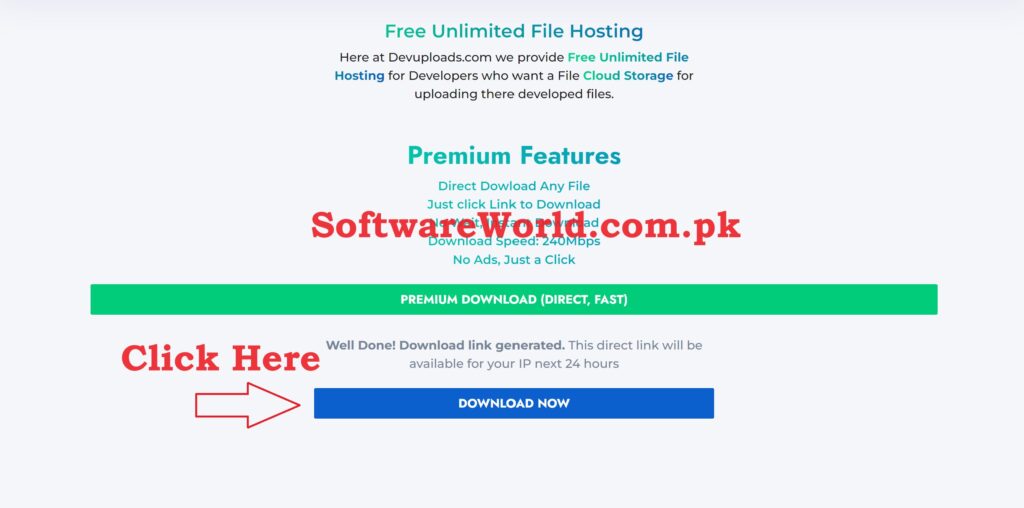
Step 5: Scroll down and click on the “DOWNLOAD NOW” button.
Now enjoy your latest version of WinSetupFromUSB
Quickly Download WinSetupFromUSB
- Install IDM Application OR Software using exe file in Setup folder
- Close the Application and uninstall completely (Even from system tray and task manager)
- Copy the IDMan.exe file from active folder to Application’s installation folder (C:\Program Files (x86)\Internet Download Manager)
- Confirm replacing if asked
- Run reg file
- Enjoy the Application
Latest Version of Internet Download Manager (IDM)
Video Tutorial
Conclusion
Creating a bootable USB for Windows 10 and 11 is a straightforward task that anyone can accomplish with the right tools and guidance. Whether you’re upgrading your system, installing a fresh copy of Windows, or troubleshooting a PC, having a bootable USB on hand is invaluable. By following the steps outlined in this guide, you’ll be able to make a bootable USB for Windows 10 and 11 with ease, ensuring your system is up and running in no time.
If You Have Any Questions, Please Feel Free to Post Them in the Comment Section Below!
For more updates and content, be sure to follow our Facebook page, subscribe to our YouTube channel, and check out our Instagram for the latest photos and stories.