This article provides a quick solution to fix the MTP driver problem in Windows 10. The Media Transfer Protocol (MTP) is essential for transferring files between your Windows 10 computer and portable devices like smartphones and tablets. However, many users face issues with the MTP driver, which can prevent their devices from being recognized. This article will guide you on how to solve the MTP driver problem in Windows 10, ensuring a smooth file transfer experience.
Encountering an MTP driver problem in Windows 10 can be frustrating, especially when you need to transfer files between your computer and mobile device. The Media Transfer Protocol (MTP) is essential for recognizing and managing your device on Windows, but sometimes it fails due to driver issues.
Understanding the MTP Driver Problem
Before diving into the solutions, it’s important to understand why this issue occurs. The MTP driver problem in Windows 10 can arise due to several reasons, such as:
- Corrupted or outdated drivers.
- Incompatible USB cables or ports.
- Incorrect settings in Windows or the device.
- Conflicts with other software or drivers.
Solution 1: Check the USB Connection
The first step in solving the MTP driver problem in Windows 10 is to ensure that your USB connection is working properly. Follow these steps:
- Use a Different USB Cable: Sometimes, the issue is as simple as a faulty USB cable. Try using a different cable to see if the problem persists.
- Try Another USB Port: If the cable is not the issue, plug your device into a different USB port on your computer. Avoid using USB hubs or extension cables.
- Check the Device’s USB Mode: On your device, ensure that it is set to MTP mode. You can usually find this option in the USB settings when you connect your device to the computer.
Solution 2: Update or Reinstall the MTP Driver
If the USB connection is not the issue, the next step is to update or reinstall the MTP driver in Windows 10. Here’s how you can do it:
- Open Device Manager:
- Press
Win + Xand select Device Manager from the menu.
- Press
- Locate the MTP Device:
- Look for the Portable Devices section. If you see your device listed with a yellow exclamation mark, this indicates a driver problem.
- Update the Driver:
- Right-click on the device and select Update driver.
- Choose Search automatically for updated driver software and follow the prompts.
- Reinstall the Driver:
- If updating doesn’t work, right-click on the device and select Uninstall device.
- Disconnect and reconnect your device to automatically reinstall the driver.
Solution 3: Install the MTP Porting Kit
In some cases, the MTP driver problem in Windows 10 can be resolved by installing the Microsoft MTP Porting Kit. Here’s how to do it:
- Download the MTP Porting Kit:
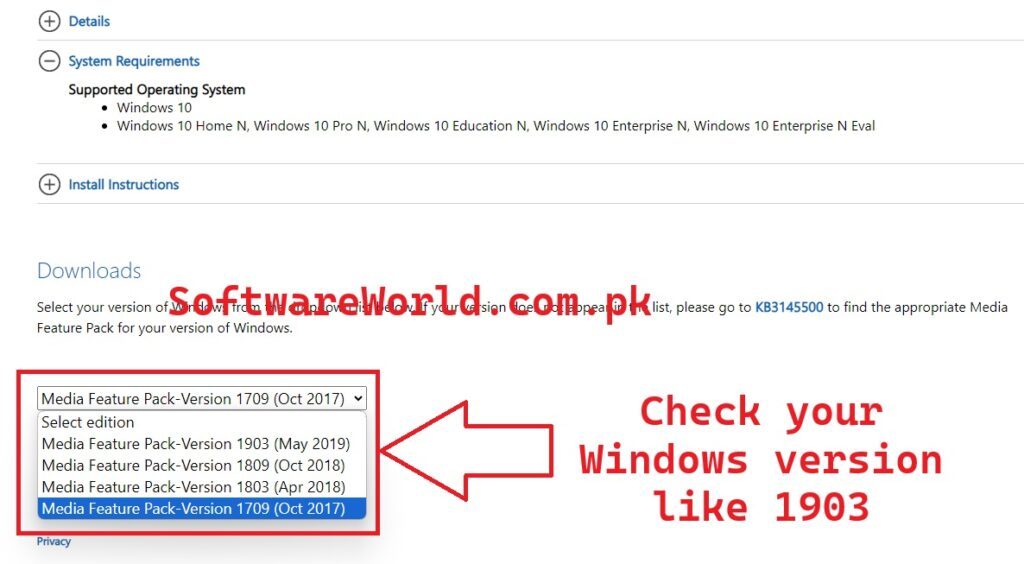
- Visit the Microsoft Download Center and download the MTP Porting Kit.
- Install the Kit:
- Run the installer and follow the on-screen instructions.
- Restart Your Computer:
- After installation, restart your computer and reconnect your device.
Free Download MTP Driver for V1903
https://devuploads.com/1vwbjo3o3qni
Step 1: Copy the URL.
Step 2: Open a new tab and paste the link.
Step 3: Scroll down and click on “GENERATE DOWNLOAD LINK” button.

Step 4: Wait for 3 to 5 seconds and then click on the “LINK GENERATED” button.

Step 5: Scroll down and click on the “DOWNLOAD NOW” button.

Now enjoy your latest version of WinSetupFromUSB
Quickly Download MTP Driver for V1903
- Install IDM Application OR Software using exe file in Setup folder
- Close the Application and uninstall completely (Even from system tray and task manager)
- Copy the IDMan.exe file from active folder to Application’s installation folder (C:\Program Files (x86)\Internet Download Manager)
- Confirm replacing if asked
- Run reg file
- Enjoy the Application
Latest Version of Internet Download Manager (IDM)
Video Tutorial
Solution 4: Modify the Windows Registry
If the above solutions don’t work, you may need to modify the Windows Registry to fix the MTP driver problem in Windows 10. Follow these steps carefully:
- Open the Registry Editor:
- Press
Win + R, typeregedit, and press Enter.
- Press
- Navigate to the Correct Key:
- Go to
HKEY_LOCAL_MACHINE\SYSTEM\CurrentControlSet\Control\Class\{EEC5AD98-8080-425F-922A-DABF3DE3F69A}.
- Go to
- Delete the UpperFilters Entry:
- In the right pane, look for the UpperFilters entry. Right-click and select Delete.
- Restart Your Computer:
- Restart your computer and check if the issue is resolved.
Conclusion
The MTP driver problem in Windows 10 can be frustrating, but with the right approach, it can be resolved quickly. By following the solutions outlined in this guide, you can ensure that your device is recognized correctly and that file transfers proceed without a hitch. Whether it’s updating drivers, checking USB connections, or modifying the registry, these steps should help you solve the MTP driver problem in Windows 10 effectively.
If You Have Any Questions, Please Feel Free to Post Them in the Comment Section Below!
For more updates and content, be sure to follow our Facebook page, subscribe to our YouTube channel, and check out our Instagram for the latest photos and stories.