Creating a multi-boot USB for Windows 7, 10, & 11 is essential for anyone managing multiple operating systems. This guide explains how to create a multi-boot USB for Windows 7, 10, & 11 in a few simple steps. Whether you’re an IT professional or just someone looking to streamline your setup process, learning how to create a multi-boot USB for Windows 7, 10, & 11 will save you time and effort. By following our detailed instructions, you’ll be able to create a multi-boot USB for Windows 7, 10, & 11, enabling you to install and manage these systems effortlessly
Why Create a Multi-Boot USB?
A multi-boot USB drive allows you to install multiple operating systems from a single device. Instead of juggling multiple USB drives, you can consolidate everything into one, making it easier to manage and deploy different versions of Windows. Here are some key benefits:
- Convenience: Carry one USB drive with multiple operating systems.
- Efficiency: Quickly switch between different OS installations without the need for separate USB drives.
- Versatility: Support older hardware with Windows 7 while also having the latest versions of Windows 10 and 11 on hand.
Requirements
Before you begin, you’ll need the following:
- A USB Drive with at least 16GB of Storage: The more storage, the better, especially when working with large ISO files (32GB or more is recommended).
- ISO Files for Windows 7, 10, and 11: These can be downloaded from the official Microsoft website or our website Software World.
- WinSetupFromUSB or YUMI: These tools are essential for creating a multi-boot USB.
Step 1: Prepare the USB Drive
- Format the USB Drive:
- Insert your USB drive into your computer.
- Open Disk Management (press
Win + Xand select Disk Management). - Right-click on your USB drive and choose Format. Select NTFS as the file system. FAT32 is recommended because it’s compatible with both UEFI and legacy BIOS systems.
- Partition the USB Drive (Optional):
- If you want to create separate partitions for each OS, use Disk Management to shrink the primary partition and create new ones. Assign different labels to each partition to keep them organized.
Step 2: Download ISO Files
Ensure you have the ISO files for Windows 7, 10, and 11 ready. You can download them directly from the Microsoft website or our website Software World or use existing ISO files if you already have them. These ISO files contain all the installation data for each version of Windows.
Step 3: Use WinSetupFromUSB to Create the Multi-Boot USB
- Install and Launch WinSetupFromUSB:
- Download and install WinSetupFromUSB. This tool is user-friendly and widely used for creating multi-boot USB drives.
- Add Windows 7 ISO:
- Open WinSetupFromUSB and select your USB drive from the list of available drives.
- Under the Windows Setup/PE section, click Browse and locate your Windows 7 ISO file.
- Select the ISO file and add it to the list.
- Add Windows 10 and 11 ISO Files:
- Repeat the process for the Windows 10 and Windows 11 ISO files. Add them one by one to ensure that all operating systems are included.
- Start the Process:
- Once all ISO files are added, click the GO button to begin creating the multi-boot USB. The tool will copy all necessary files and create a boot menu that allows you to choose which operating system to install when booting from the USB.
- Verify the USB:
- After the process is complete, it’s a good idea to test the USB drive. Restart your computer, set it to boot from the USB drive, and check if the boot menu appears with options for Windows 7, 10, and 11.
Free Download WinSetupFromUSB
https://devuploads.com/tvxyqv7dkl0k
Step 1: Copy the URL.
Step 2: Open a new tab and paste the link.
Step 3: Scroll down and click on “GENERATE DOWNLOAD LINK” button.
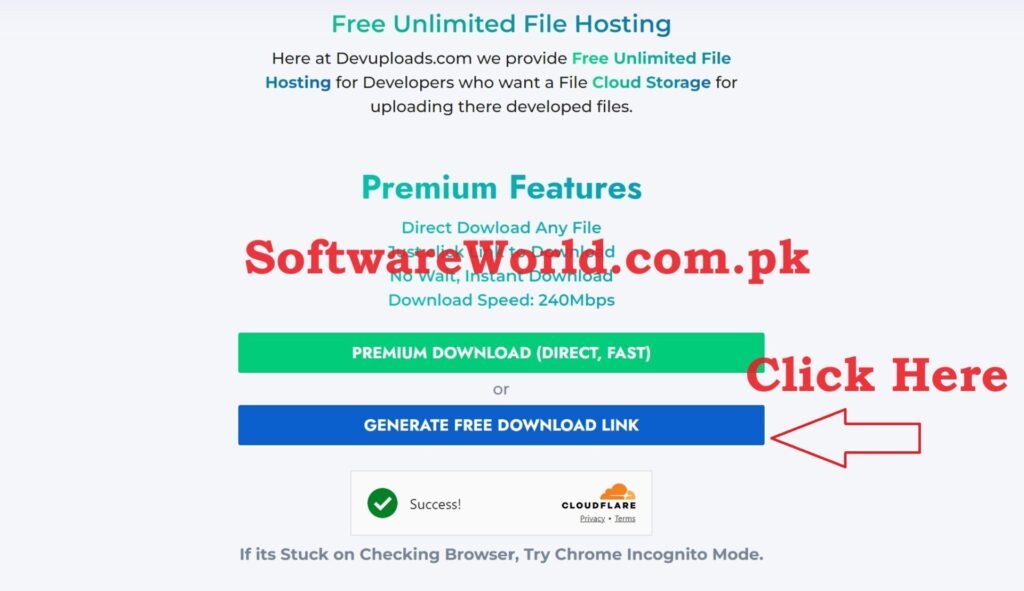
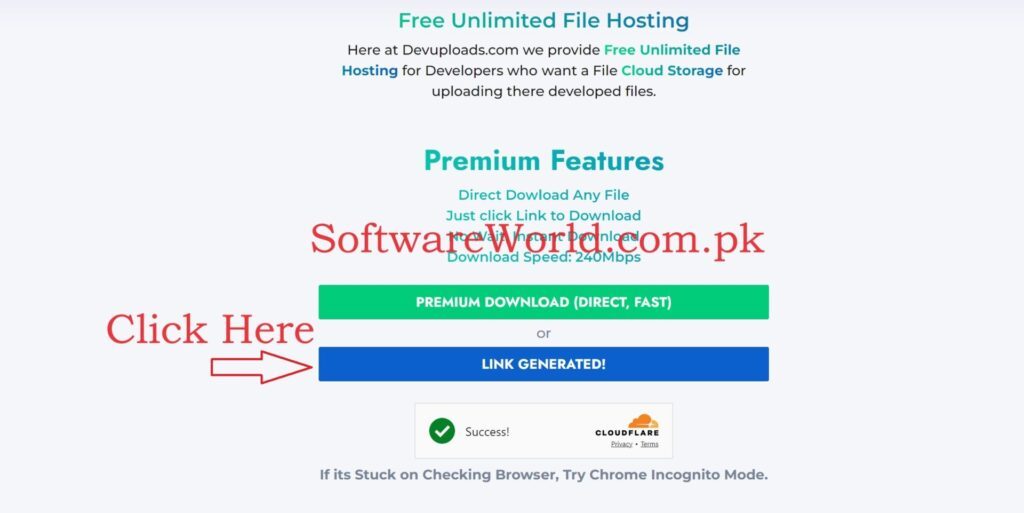
Step 4: Wait for 3 to 5 seconds and then click on the “LINK GENERATED” button.
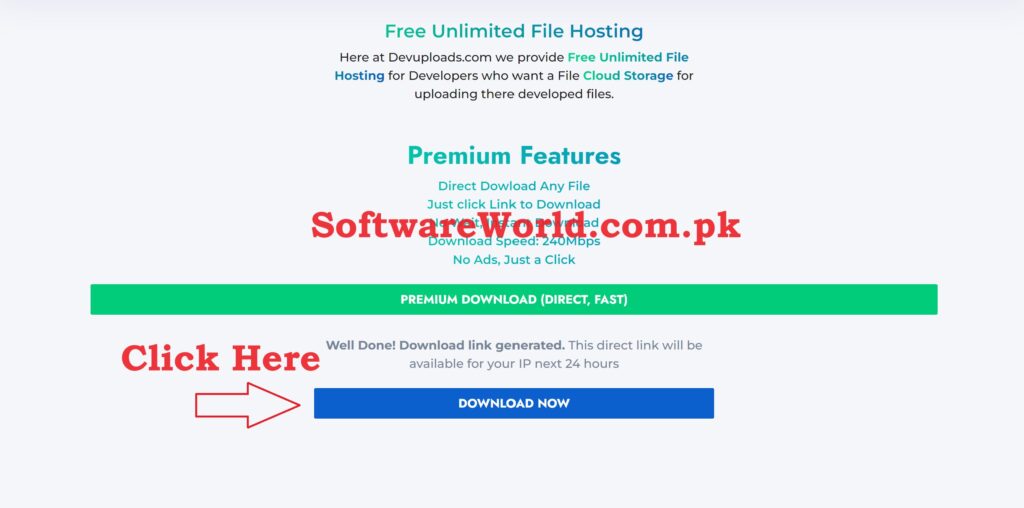
Step 5: Scroll down and click on the “DOWNLOAD NOW” button.
Step 4: Boot and Install
- Boot from the USB Drive:
- Insert your multi-boot USB into the target computer.
- Restart the computer and enter the BIOS or UEFI settings (usually by pressing
F2,Del, orF12during startup). - Set the USB drive as the primary boot device.
- Select the Operating System:
- After booting, you will see a menu that allows you to choose which Windows version to install—Windows 7, 10, or 11.
- Select the desired OS and follow the on-screen instructions to complete the installation.
- Install the OS:
- The installation process will proceed as usual, depending on the version of Windows you selected. Be sure to back up any important data before installation to avoid accidental data loss.
Video Tutorial
Key Benefits of a Multi-Boot USB
Creating a multi-boot USB for Windows 7, 10, and 11 has several advantages:
- Space Efficiency:
- Carrying multiple USB drives for different operating systems is cumbersome. A multi-boot USB combines everything into one device, saving space and reducing clutter.
- Time-Saving:
- If you frequently switch between different operating systems, a multi-boot USB eliminates the need to prepare separate installation media each time. This is particularly beneficial for IT professionals who regularly work with different versions of Windows.
- Flexibility:
- A multi-boot USB allows you to quickly respond to different installation needs. Whether you’re working with an older machine that requires Windows 7 or installing Windows 11 on the latest hardware, you’re always prepared.
- Cost-Effective:
- Instead of buying multiple USB drives for each operating system, you only need one, which can reduce costs.
- Easy Updates:
- Updating your multi-boot USB with new ISO files is straightforward. Simply add the updated ISO using the same process, ensuring you always have the latest version of each OS.
Conclusion
A multi-boot USB for Windows 7, 10, and 11 is a practical tool that enhances convenience, efficiency, and flexibility. Whether you’re an IT professional managing multiple systems or a tech enthusiast experimenting with different Windows versions, this guide provides a step-by-step process to create your own multi-boot USB. By following these steps, you can streamline your workflow and ensure you’re always ready for any installation scenario.
If You Have Any Questions, Please Feel Free to Post Them in the Comment Section Below!
For more updates and content, be sure to follow our Facebook page, subscribe to our YouTube channel, and check out our Instagram for the latest photos and stories.